How to Add a Sticky Add to Cart Button on Shopify

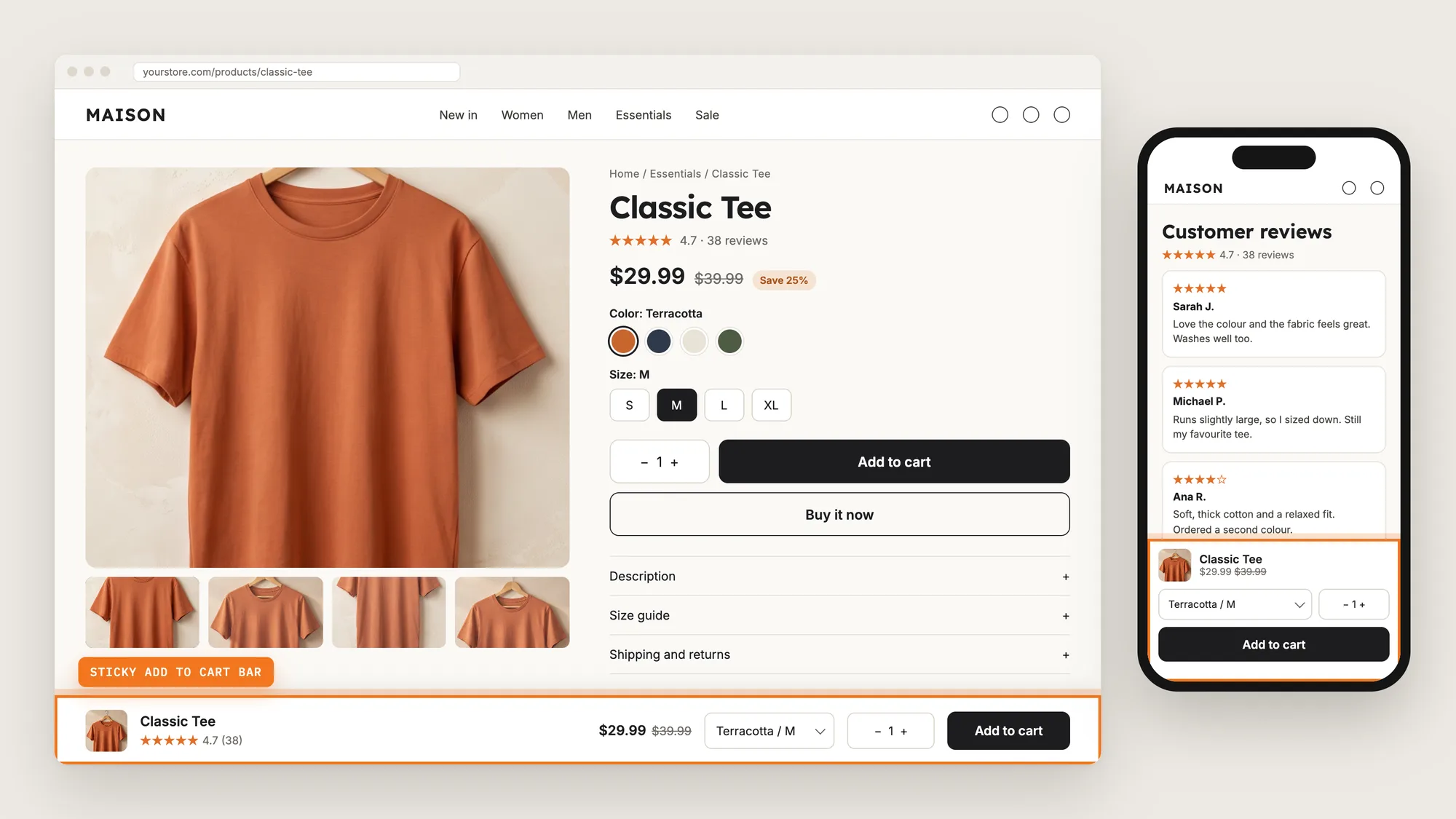
Most Shopify product pages are long. Photo galleries, reviews, size guides and FAQs push the main Add to Cart button off screen soon after a shopper starts scrolling.
A shopper who is ready to buy then has to scroll back up to find the Add to Cart button. A sticky add to cart button stays pinned to the top or bottom of the screen, so shoppers can add the product to their cart from anywhere on the page.
Here are the three ways to add a sticky add to cart button to a Shopify store: with a Sticky Add to Cart Button app, from your theme settings, or with custom code.
What Is a Sticky Add to Cart Button?
A sticky add to cart button is an Add to Cart button that stays pinned to the top or bottom of the screen while shoppers scroll a product page. It usually sits in a small bar that also shows the product name, price and variant picker.

A good sticky add to cart button includes:
- Button and price: The Add to Cart button and the current price, so shoppers can see what they're paying before they click.
- Variant and quantity pickers: Shoppers can change size, color or quantity without scrolling back up.
- Separate mobile and desktop settings: The bar can sit at the bottom on phones and at the top on desktop, or show on one device only.
- When the bar appears: The bar can show all the time, once the shopper starts scrolling, or only after they scroll past the main button.
A sticky add to cart button adds the product to the cart the same way the theme's own Add to Cart button does.
What's the Quickest Way to Add a Sticky Add to Cart Button?
- Vitals - All in One App is the quickest way to add a sticky add to cart button for most stores
- Vitals also offers 40+ apps, such as product reviews, bundles and a cart drawer, in one subscription of $29.99/month, so you don't have to install and pay for each app separately
Here's how the three methods compare. If you'd rather weigh several sticky bar apps against each other, see our list of the best sticky add to cart apps for Shopify.
How to Add a Sticky Add to Cart Button With a Shopify App?
Install the Vitals - All in One App, open its Sticky Add to Cart app and click Activate app. The sticky add to cart bar then shows on your product pages, and the steps below set when and where it appears.
Step 1: Install the Vitals - All in One App
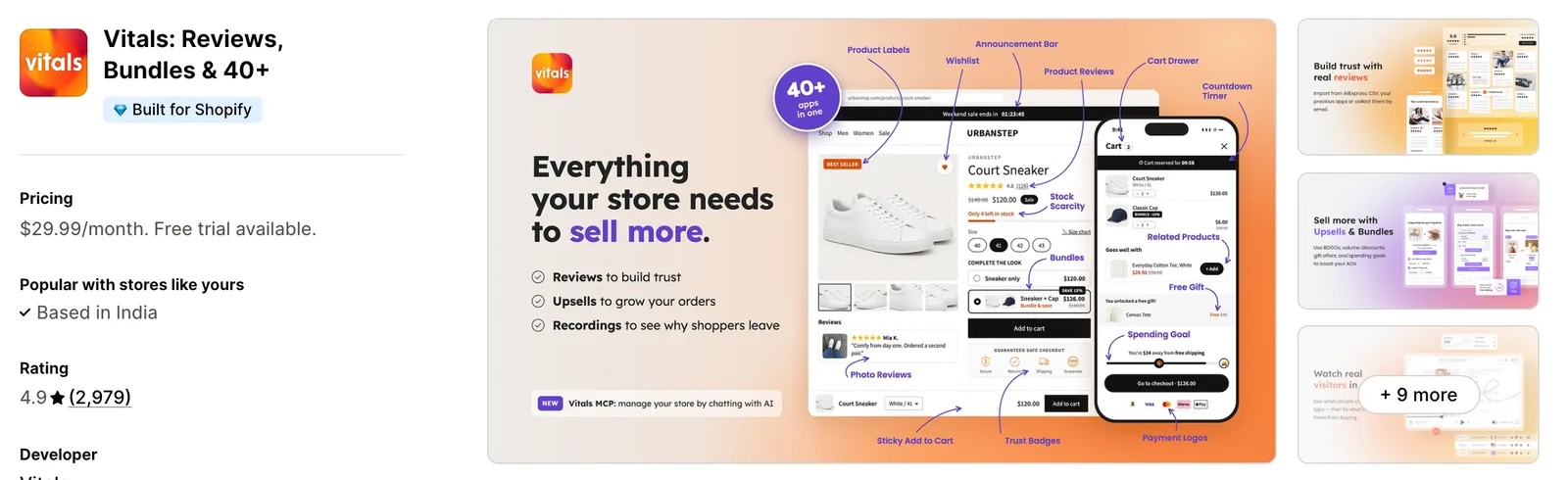
Install the Vitals - All in One App from the Shopify App Store. The 7-day free trial includes the Vitals Sticky Add to Cart app.
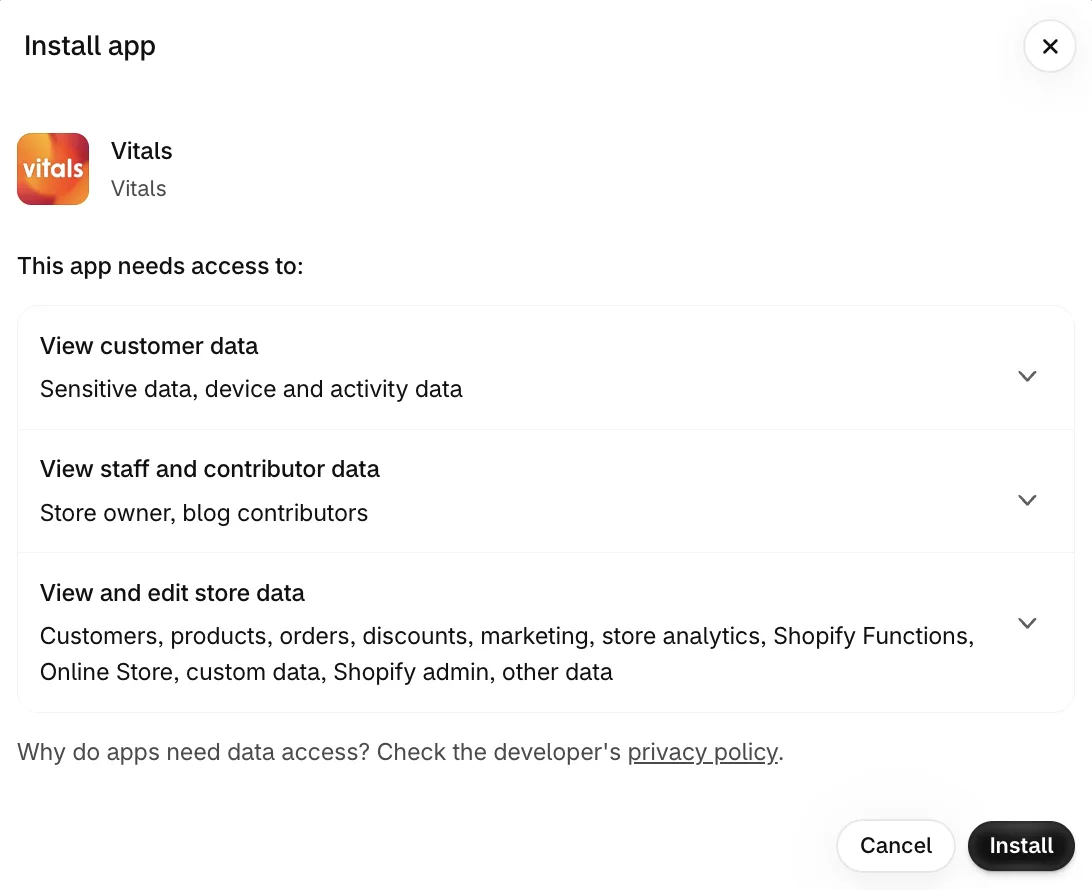
Step 2: Approve the Install in Shopify
Shopify shows the data Vitals needs to work on your store. Click Install to approve it and open the Vitals dashboard.
Step 3: Open Sticky Add to Cart
In the Vitals dashboard, find Sticky Add to Cart in the list of apps and click it.
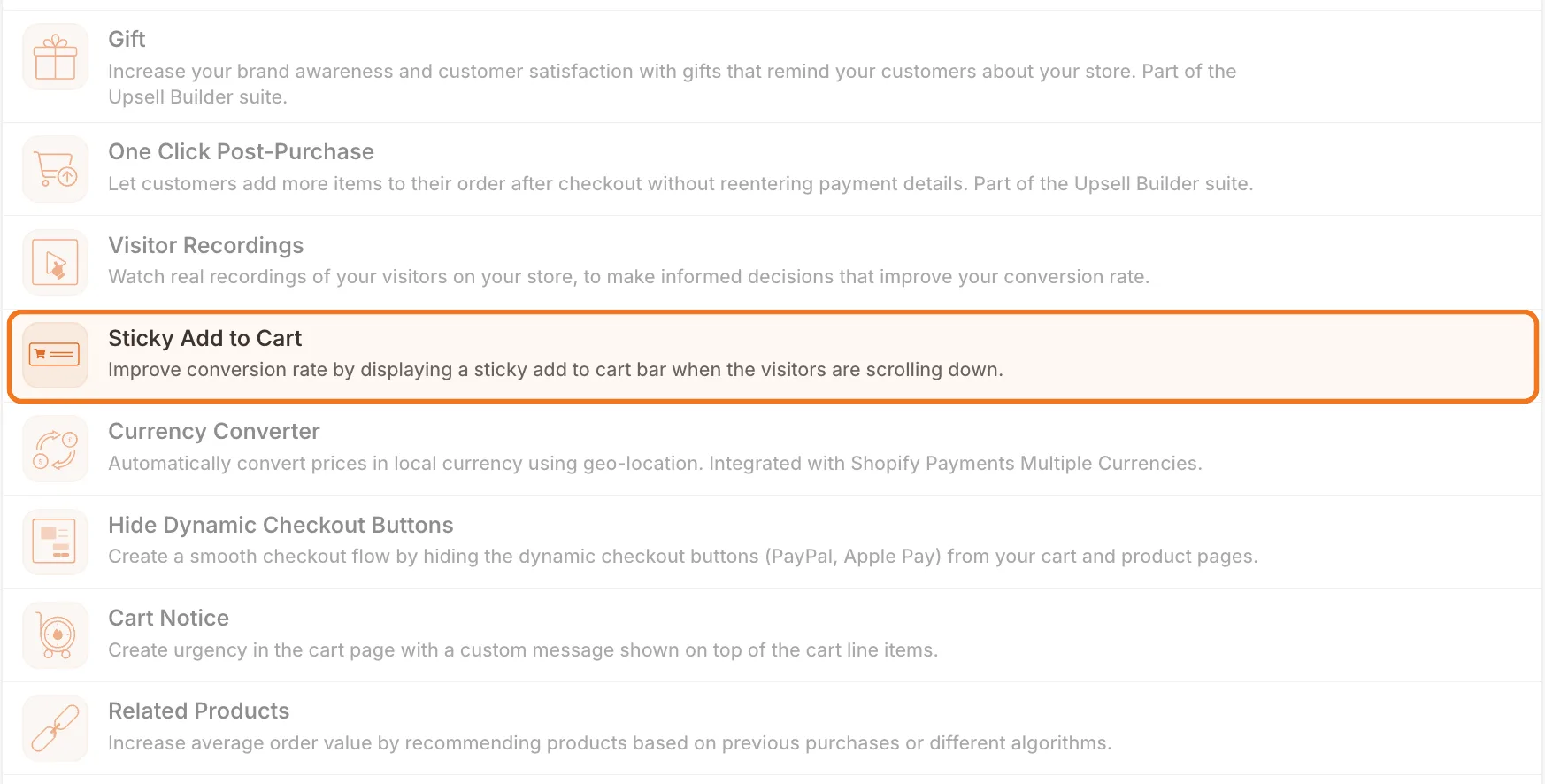
Step 4: Activate the App
On the Sticky Add to Cart page, click Activate app to turn the bar on. Customize opens the settings used in the steps below.
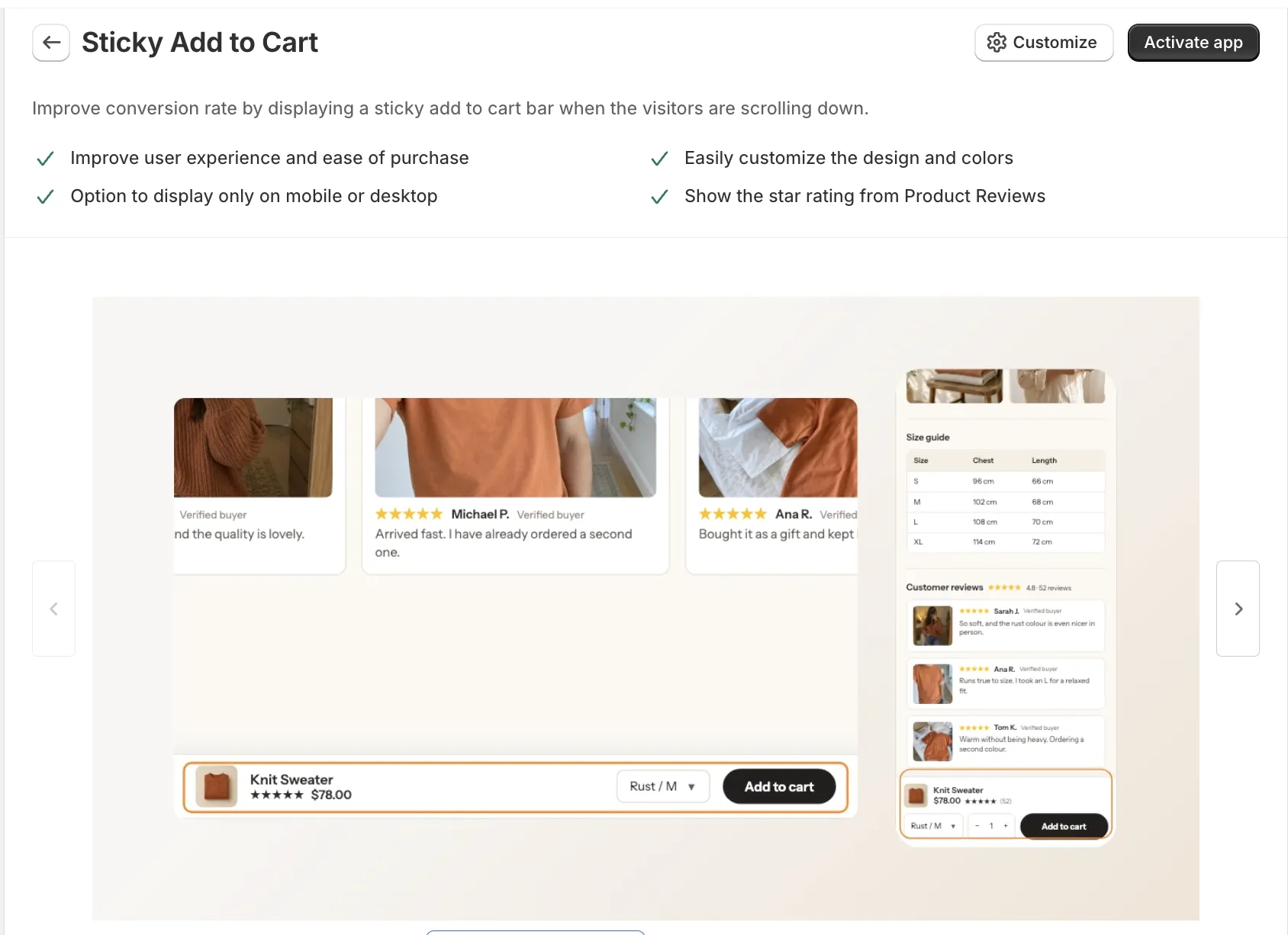
Step 5: Choose Which Devices Show the Bar
The settings page has two sections, Sticky on Mobile and Sticky on Desktop, with a live preview beside them. Tick Show on mobile devices, Show on desktop devices, or both. Tick only one to show the bar on that device alone.
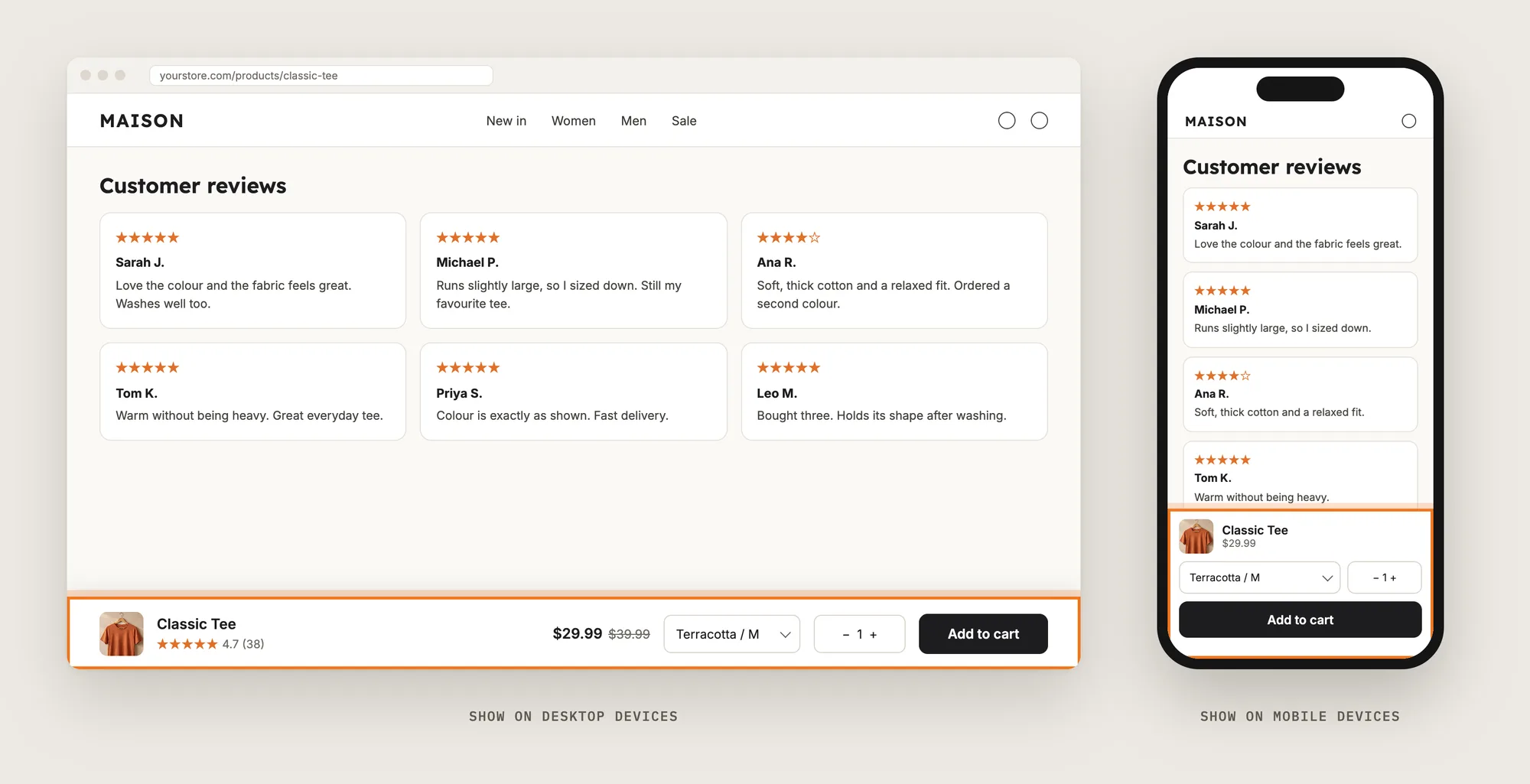
Step 6: Set When the Bar Appears and Where It Sits
Under each device section, When to show has three options:
- Always on display: The bar is visible as soon as the page loads
- When user starts scrolling: The default setting. The bar slides in on the first scroll
- When user scrolls past the Add to Cart button: The bar shows only once the theme's own button is off screen, so the sticky bar and the theme's button never show at the same time
Then set Mobile location and Desktop location to Bottom or Top. Bottom suits most phones, since the bar sits within reach of the shopper's thumb. The live preview doesn't reflect the When to show setting, so check the timing on your store.
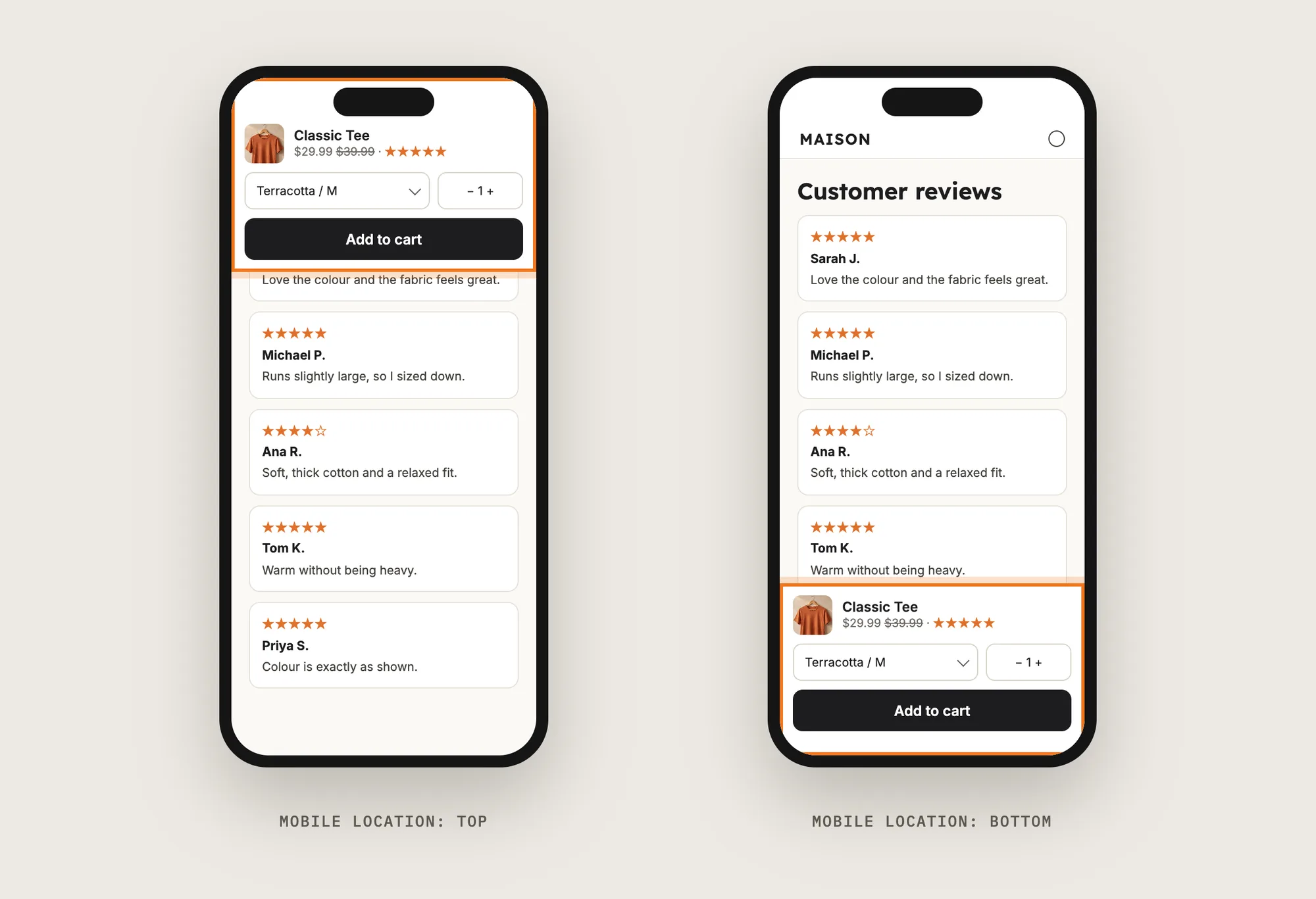
Step 7: Pick What the Bar Shows
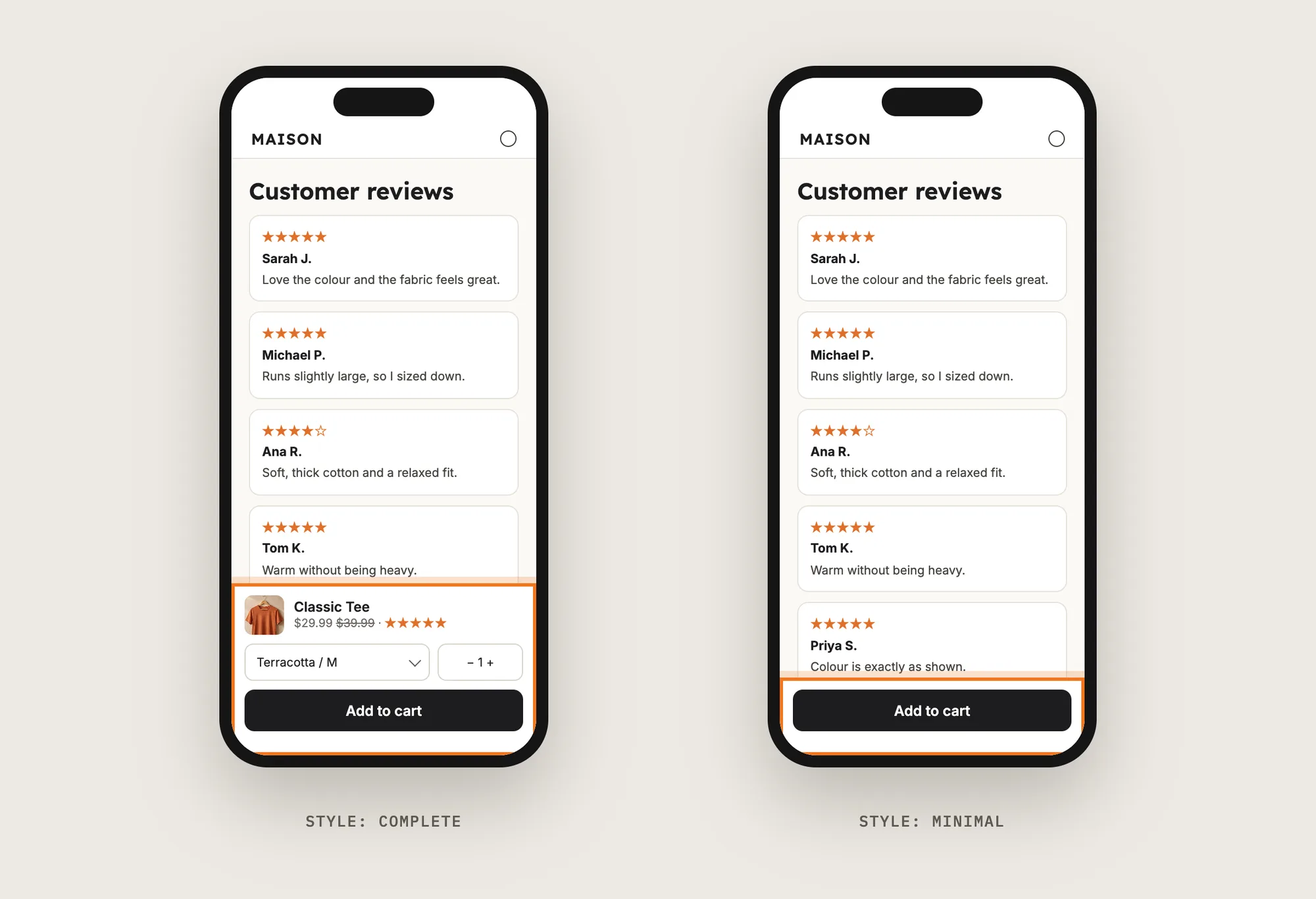
On mobile, Style decides how much the bar holds:
- Complete: Can show the product image and title, price, compare-at price, variant selector, quantity selector and review stars, each with its own toggle
- Minimal: Shows the button only, for the smallest bar
On desktop, set Bar height (Small, Medium or Large), Bar content width and Button size, then use the same show and hide toggles. Review stars and the review count can appear in the bar when the product has reviews from the Vitals Product Reviews app.
Step 8: Match the Button to Your Theme
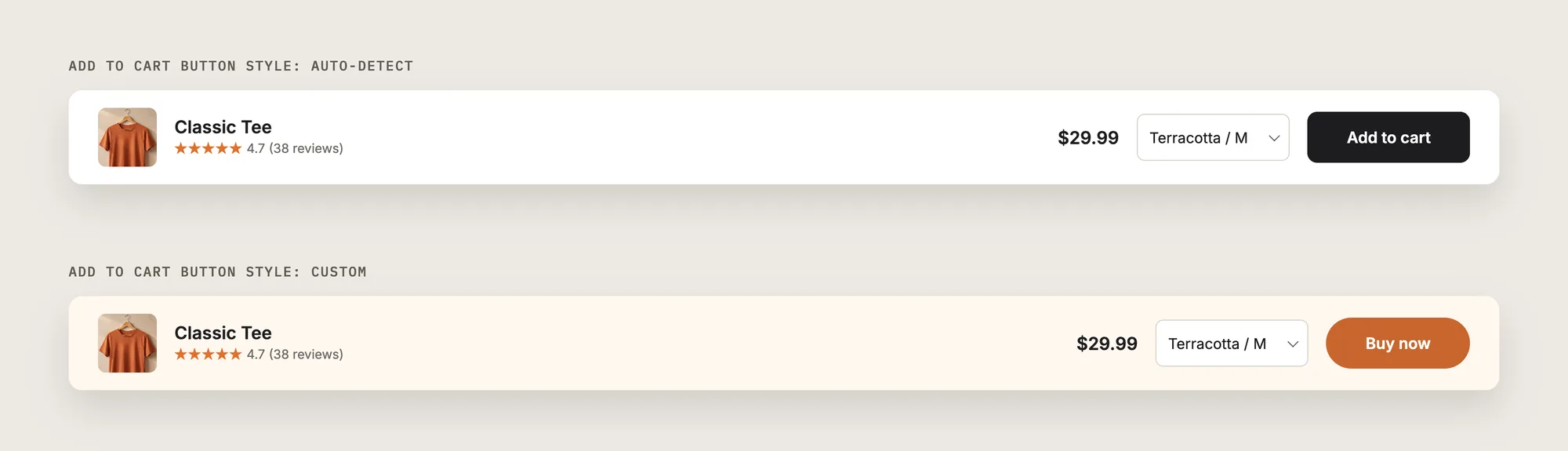
In General settings, Add to Cart button style has two options. Auto-detect copies the look of your theme's main button. Custom lets you set the button's background and text colors yourself.
The same section sets the bar's background and text colors, the corner radius and the button shadow. Turn on Overwrite Add to Cart button text to write your own label, such as "Buy now". If you also use the Vitals Animated Add to Cart app, Apply Animated Add to Cart style gives the sticky button the same animation.
Step 9: Limit the Bar to Certain Products (Optional)
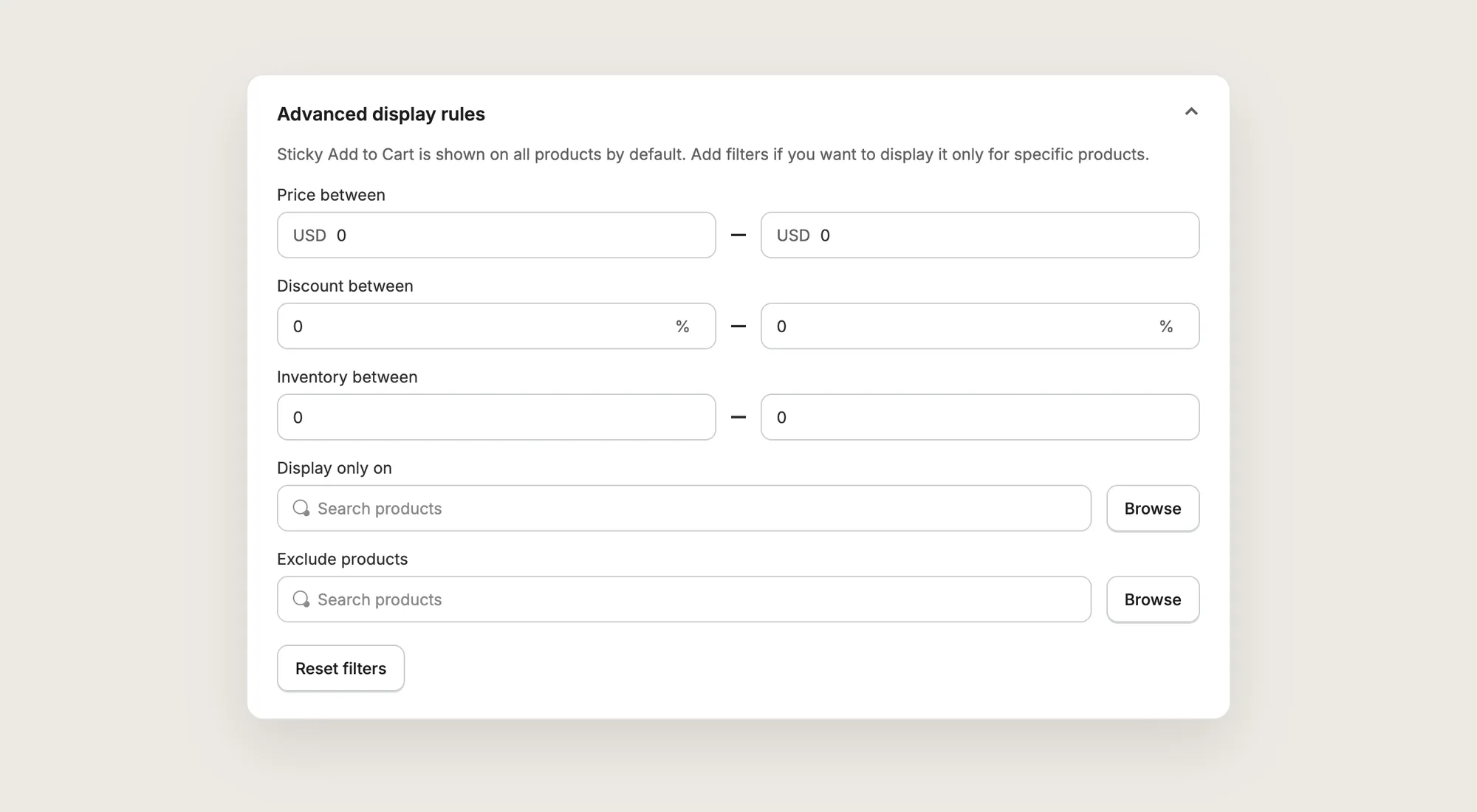
The bar shows on every product by default. Expand Advanced display rules to choose which products show the bar:
- Show the bar only when the product's Price between, Discount between or Inventory between falls in a range you set
- Show the bar only on chosen products with Display only on, or hide the bar on chosen products with Exclude products (use one list, not both)
Step 10: Save, Test on Your Phone and Watch the Clicks
Save, then open a product page on your phone and on desktop. Check that the bar appears when you expect, that the variant picker changes the price, and that the bar's button adds the right variant.
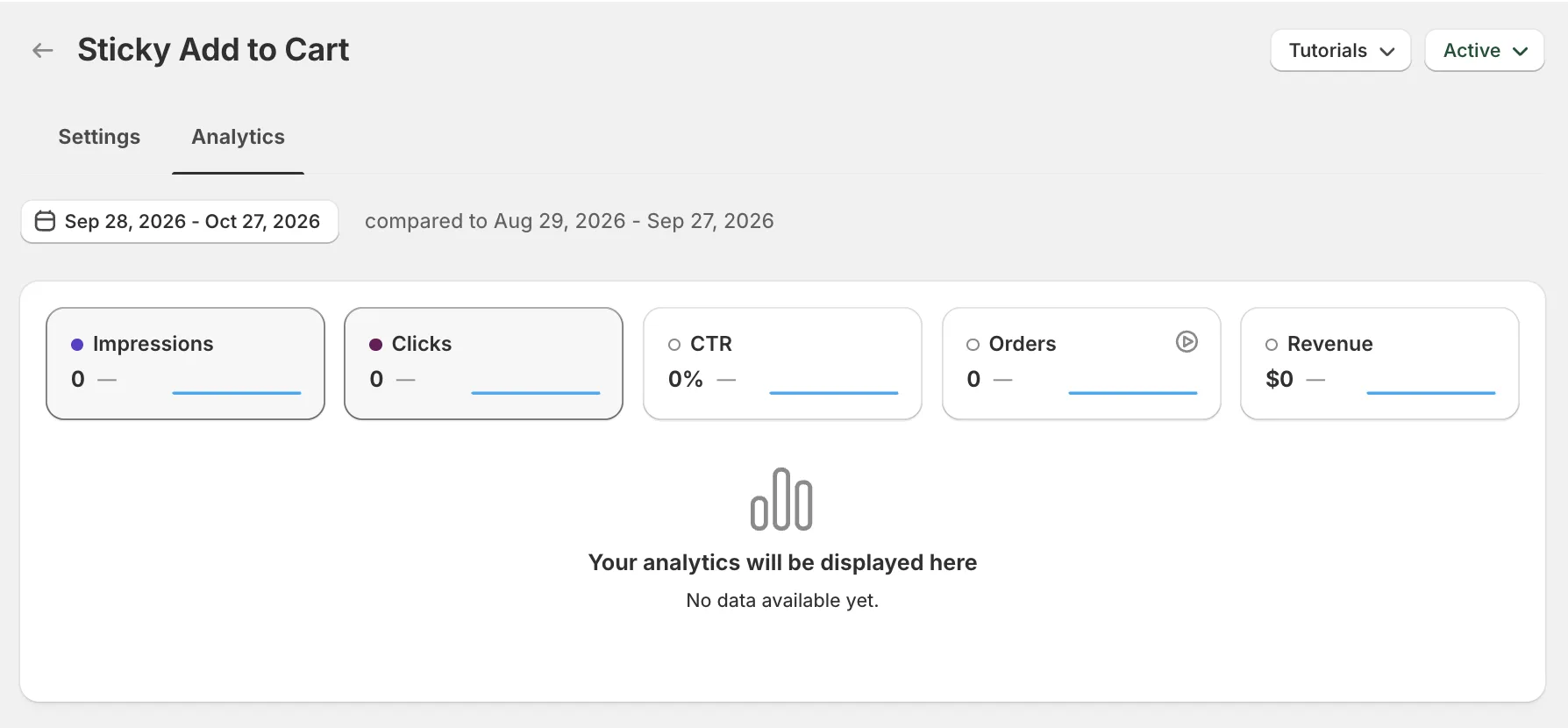
The Analytics tab then shows the bar's impressions, clicks, click rate (CTR), orders and revenue, so you can compare your click rate with the median further down this guide.
Step 11: Voila, Your Sticky Add to Cart Button Is Live on the Store
Your shoppers now see the sticky add to cart bar as they scroll your product pages, so they can add a product to their cart from anywhere on the page.
How to Add a Sticky Add to Cart Button From Your Theme Settings?
Some Shopify themes, mostly paid themes, include a sticky add to cart option in their settings. Shopify's free Dawn theme doesn't include a sticky add to cart option. To check your theme's settings:
- In Shopify, go to Online Store → Themes and click Customize
- Open a product page from the page menu at the top
- Click the Product information section and look for a sticky or "sticky add to cart" setting, then check Theme settings too
If you find a sticky add to cart setting, switch the setting on and test the bar on your phone. A theme's built-in sticky add to cart button is usually simpler than an app, often with no separate mobile and desktop settings, no choice of when the bar appears and no click tracking. If your theme's sticky add to cart button has everything you need, you may not need an app at all.
How to Add a Sticky Add to Cart Button Without an App?
Hire a developer to build a sticky add to cart button into your theme with Liquid, CSS and JavaScript. A script tracks the theme's main Add to Cart button and shows the bar once that button scrolls off screen.
A custom sticky add to cart button usually involves:
- Duplicating your theme, so the live store isn't affected while the code is tested
- Adding the bar's markup to the product page template
- Styling the bar so it stays fixed to the top or bottom of the screen on mobile and desktop
- Writing a script that shows the bar on scroll and keeps its price, variant and quantity in sync with the product form
- Testing every product type, then publishing the theme copy
Custom code means no extra app, but you or your developer have to maintain it. A theme update can replace the files the code sits in, so the bar may need rebuilding after each update. Variant syncing, cart drawer support and click tracking all have to be built by hand too.
Does a Sticky Add to Cart Button Increase Sales?
We looked at 2,660 Shopify stores running the Vitals Sticky Add to Cart app between July and September 2026. Together they recorded 138 million bar impressions, 2.9 million clicks and 2.4 million add to carts.
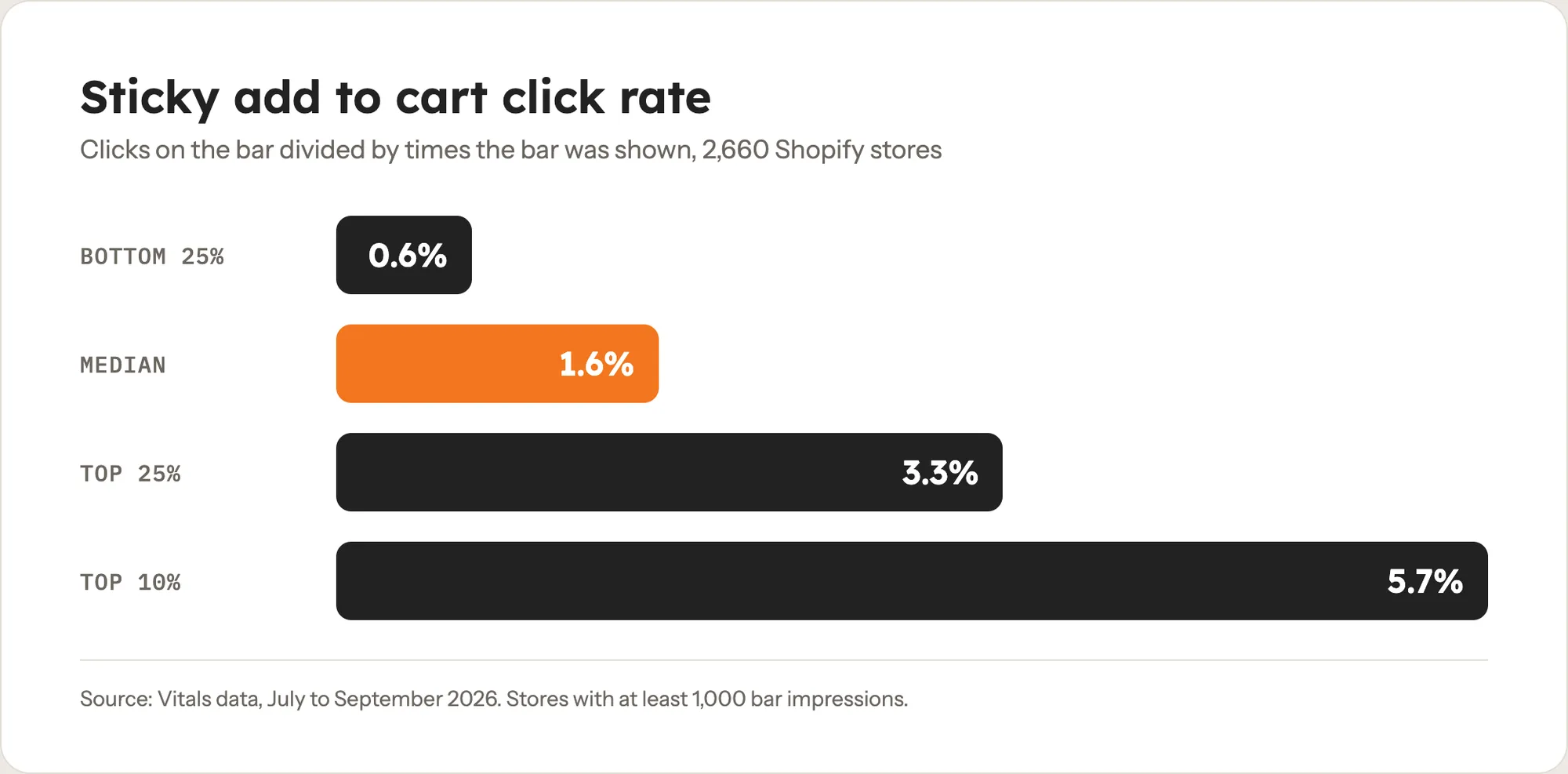
- The median store gets a 1.6% click rate on its sticky bar
- A store needs 3.3% to be in the top quarter, and 5.7% to be in the top tenth
- Below 0.6%, the bar is probably hidden, badly placed or showing on pages where shoppers aren't ready to buy
At the median store, the sticky bar is part of 9.3% of orders, almost one order in ten. In the top 10% of stores, the sticky bar is part of 25% of orders, one in four.
These figures are attribution, not a controlled test. They show how often the bar is part of a sale, not how many sales the bar created on its own.
Getting shoppers to click the bar is the hard part, which is what the next section focuses on.
How Do You Get More Clicks on a Sticky Add to Cart Bar?
Four out of five clicks on the bar already end in an add to cart, so almost all the gain comes from getting more shoppers to click. These steps help:
- Show the price and product image on the bar. A shopper who has scrolled down the page can confirm what they're buying without scrolling back up. On mobile, set Style to Complete to turn on the image and price
- Put the variant picker on the bar. If shoppers have to scroll up to choose a size, the bar hasn't saved them anything. Turn on Show variant selector
- Show the bar only after the main button scrolls away. Two Add to Cart buttons on screen at once is clutter. Set When to show to "When user scrolls past the Add to Cart button"
- Use a short, plain button label. "Add to cart" works, while a clever label makes shoppers stop and read
- Check the bar on a real phone. Make sure the bar doesn't cover a chat widget, a cookie banner or the bottom navigation
Store size matters too. The top 10% of stores in our data are mostly established stores with lower-priced products, so use the 3.3% top-quarter click rate as a realistic target.
Why Isn't My Sticky Add to Cart Button Showing or Working?
Most problems come down to one of these:
- The bar doesn't show at all: Check that the app is activated, and that Show on mobile devices or Show on desktop devices is ticked for the device you're testing
- The bar doesn't show on the homepage: Turn on Show on homepage under Sticky on Homepage. The homepage needs a featured product section with a working product form and Add to Cart button
- The button says "Size Chart": Turn on Overwrite Add to Cart button text and enter your own label. If the button opens the size chart, move the size chart button away from the Add to Cart button in the Size Chart app's Position setting
- The bar overlaps a chat or wishlist button on mobile: Switch Mobile location from Bottom to Top
- Review stars don't show: The bar shows stars from the Vitals Product Reviews app only, not from other review apps
Which Sticky Add to Cart Method Should You Choose?
Vitals - All in One App suits most stores, but the right method depends on your theme and the settings you need.
- Choose Vitals - All in One App if you want a sticky bar with separate mobile and desktop settings, variant and quantity pickers, click tracking, and 40+ other apps in one subscription of $29.99/month, so you don't have to install and pay for each app separately
- Choose your theme's setting if your theme already includes a sticky add to cart button and you don't need click tracking or a choice of when the bar appears
- Choose custom code if you have a developer, want no app at all, and are happy to recheck the code after theme updates
If you already use another sticky bar app, see our Zoorix Sticky Add to Cart alternatives, Uplinkly Sticky Cart alternatives and EA Sticky Cart alternatives.
Start a 7-day free trial: Install the Vitals - All in One App from the Shopify App Store
Frequently Asked Questions
1. What is the best way to add a sticky add to cart button on Shopify?
Vitals - All in One App is the best way for most stores. It adds the bar without code, with separate mobile and desktop settings, variant and quantity pickers and click tracking.
2. Does Shopify have a built-in sticky add to cart button?
No, Shopify doesn't include a sticky add to cart button as a store-wide feature. Some themes include a sticky add to cart button in their product page settings, mostly paid themes, while Shopify's free Dawn theme doesn't. If your theme has no sticky add to cart button, you'll need an app or custom code.
3. Can a sticky add to cart button send shoppers straight to checkout?
Yes. In Vitals, go to Preferences → What shoppers see → After Add to cart and choose Checkout page. You can also send shoppers to the cart page, keep them on the same page, or open your theme's cart drawer on supported themes.
4. Can the sticky bar show how much a customer saves?
The Vitals sticky bar can show the compare-at price struck through next to the current price. On desktop, turn on Show compare-at price under Sticky on Desktop. On mobile, set Style to Complete, turn on Show price, then turn on Show compare-at price under Sticky on Mobile. The bar can't show a calculated saving such as "Save €20" or "15% off".
5. Will a sticky add to cart bar slow down my store?
Every app adds some code to the page. Vitals loads all of its apps from one script, so turning on the sticky bar doesn't add a new script, while a single-purpose sticky bar app loads its own script. You can also delay the Vitals script in Preferences → Script loading. We haven't speed-tested every setup, so check your own pages before and after a change.
6. What's a good click rate for a sticky add to cart bar?
Across 2,660 Shopify stores in our data, the median click rate is 1.6%. A store needs 3.3% to be in the top quarter and 5.7% to be in the top tenth. Below 0.6%, the bar is probably hidden, badly placed or on the wrong pages.
7. Can I show the sticky bar on only some products?
Yes. In the Vitals Sticky Add to Cart app, expand Advanced display rules. You can show the bar only within a price, discount or inventory range, only on products you choose, or on every product except the products you exclude.